
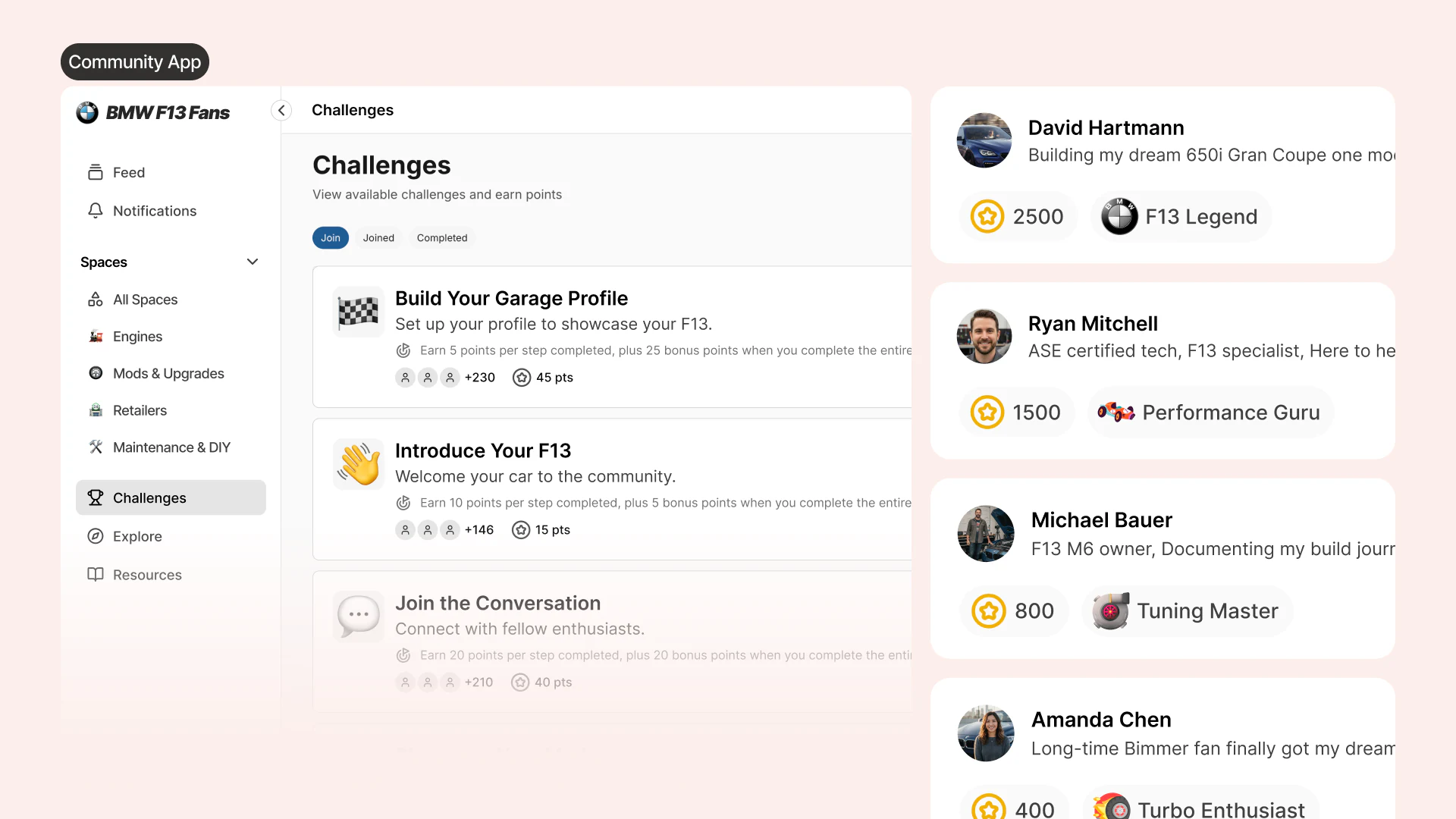
Challenges give members a clear path through valuable actions in your community. Leaders can create a draft, add executable steps, review the result, and publish it when it is ready.
Create a Challenge
Open Challenges, then select Create. Add a title, description, points for each step, and an optional completion bonus. Every canonical challenge is available to active members of the current workspace; retired membership-tier and badge selectors are not part of the authoring contract.
Add one or more steps. A step can ask a member to upload a profile image or banner, complete their profile introduction, add a bio, or add skills. Save the challenge as a draft while editing. Publishing is a separate action after its steps have been created successfully.
Member Progress
Members can discover active challenges, join, review their progress, and leave an active enrollment. Progress is read from the member's exact Mission-backed enrollment and cannot be selected for another member in the browser.
Completing a step awards the configured step points. Completing the full challenge can award the configured completion bonus. Replaying the same completion does not award the points twice.
Engagement Levels
Open Settings → Gamification to configure the named engagement levels members reach as their canonical points total grows. Each level has:
- A level number
- A member-facing name
- An optional emoji or image URL
- A non-negative points threshold
- An active or archived state
The member menu displays the currentLevel returned with that member's canonical gamification state. The Explore directory uses the canonical workspace leaderboard rank and the active engagement-level thresholds; it does not ask the member directory to sort by a legacy points field.
AI Staff Preview
The Member Engagement AI Staff member can draft Challenge and engagement-level changes. Chat never applies a change directly. Review the proposed values in Preview, then explicitly apply them through the same Mission-backed Challenge and engagement-level commands used by the direct settings screens.
Workflow Events
Workflow Designer can respond to canonical challenge.participant.completed and challenge.step.completed events. Retired badge grant and badge award events are not available as workflow triggers.